





Enrolling workers into NEST
In this section

How do I enrol workers manually online?
We recommend using this method if you only have a few workers to enrol. If you’re enrolling multiple workers at once, then it’s quicker to use file upload.
Before you get started, you’ll need to make sure you know which workers you need to enrol and then let them know you’re doing this. You have to enrol workers once they’re eligible for auto enrolment or if they’ve asked to join the scheme. For more information, visit ‘How do I prepare for enrolling workers?’.
After this, you’ll need their following information:
- name
- date of birth
- National Insurance (NI) number
- contact information - address and personal email if available
- alternative identifier - only needed if NI number isn’t available
- the name of the Nest group you’re enrolling them into
- the name of the Nest payment source you’ll use to pay contributions
- their enrolment type
- their start date - this is the date your worker’s enrolment is effective, which is usually your staging date
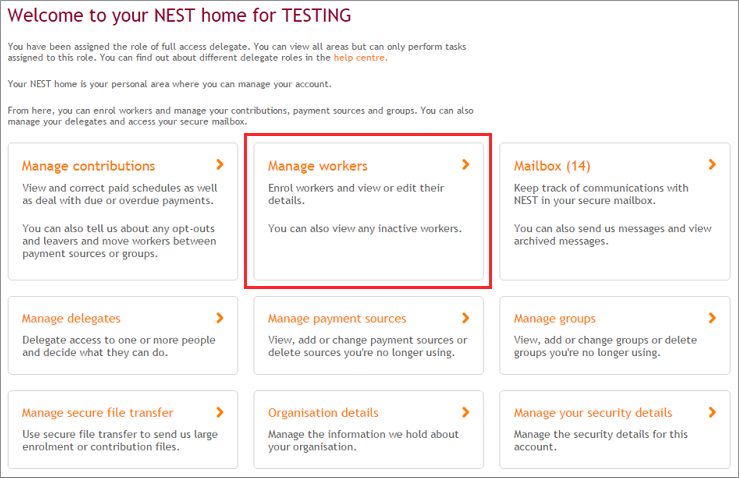
You’ll need to log into your online account and select ‘Manage workers’ from your home page.
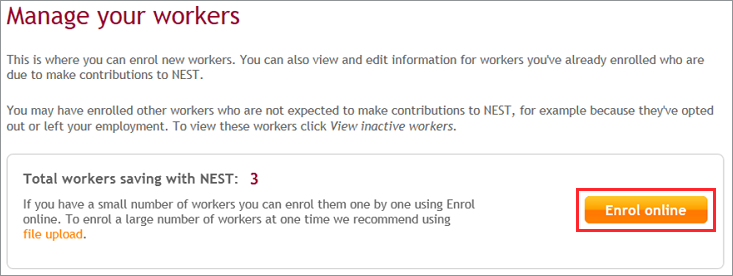
To enrol a new worker, select ‘Enrol online’.
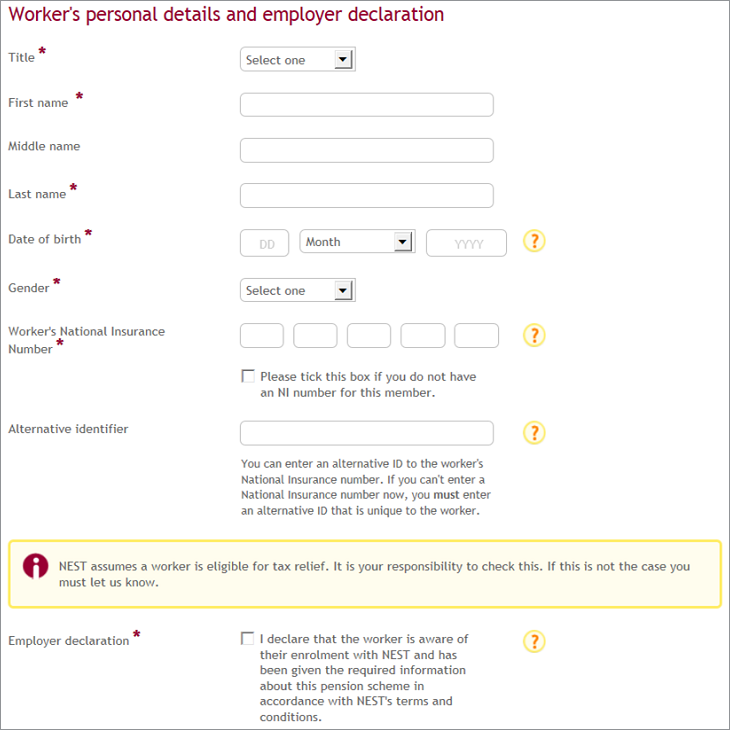
Then, you’ll need to fill in your worker’s information. Make sure you’ve entered the correct details for each box marked with an asterisk. You’ll only have a short period of time after you’ve enrolled them to edit their details.
If you don’t provide an alternative identifier, we’ll copy their National Insurance number over.
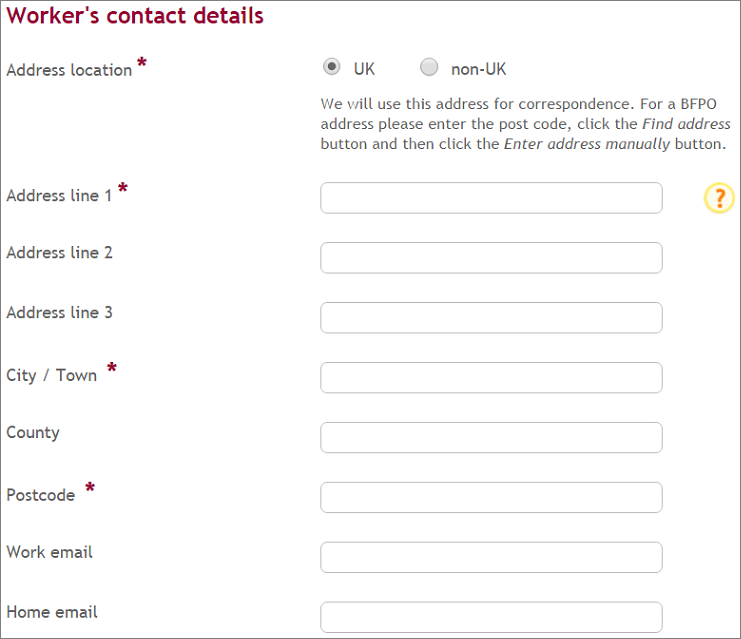
In the next section, you’ll need to enter the worker’s contact details. Again, make sure all this information is correct, and it’s also best to give us either their work or home email address. This way, we can send them a welcome email letting them know you’ve enrolled them, as well as their opt-out rights. It also means we can keep in contact with them in the future.
In the postcode box, you can type in the correct postcode and then select ‘Find address’ to choose the correct one. If you can’t find their address listed, you can manually enter it instead.
In the third section, you’ll need to select the worker's group, payment source, enrolment type and start date.
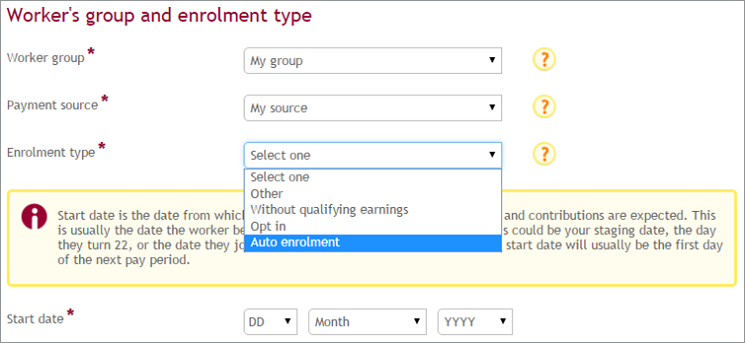
Once you’ve entered this information, select ‘Enrol this worker now’.
This is your last chance to make sure your worker’s details are correct. If you need to make any changes, select ‘Back’.
If you’re ready to submit, then select ‘Enrol this worker now’.
A message will then pop up to confirm you’ve enrolled this worker.
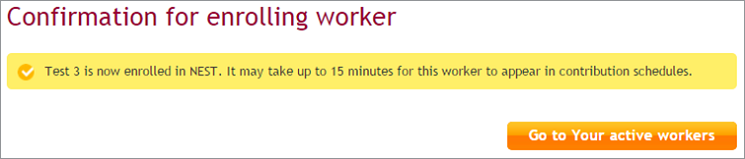
You’ll also receive a ‘Details of the workers you’ve enrolled’ notification in your secure mailbox.
If a member doesn’t receive their welcome letter within 10 working days, they can call us on 0300 020 0090.
We value your feedback
Your feedback is important to us. To help us improve, tell us what you think about our employer help centre by taking a short survey.
Was this helpful to you?
Thank you.


 Live chat
Thank you.
Thank you for the feedback.
Feedback
Was this helpful to you?
Live Chat
Our live help agents will answer your questions and guide you through setting up and managing NEST.
Our chat is available from Monday to Sunday from 8.00AM to 8.00PM
Web chat is currently unavailable
We're open from 10.00 am until 4.00 pm today. Please try again between these hours or our usual business hours of 8am to 8pm Monday to Sunday. Or you can visit our online help centre.
Web chat is currently unavailable
Our offices are now closed for the Bank Holiday. You can reach us during our normal opening times of 8am to 8pm Monday to Sunday. Or you can visit our online help centre.
Welcome to live help
To help us deal with your question quickly please tell us who you are and what you'd like help with by choosing an option from each of the menus below:
